
Download Pea Zip File Archiver
Extract, compress, and encrypt files across 200+ archive formats. Multi-platform file manager with AES-256 encryption and two-factor authentication built in.
What Is Pea Zip?
A free, open-source file archiver that handles over 200 archive formats with built-in encryption and a full file manager.
More Than Just a ZIP Tool
Pea Zip is a free file archiver and file manager that works on Windows, macOS, Linux, and BSD. Developed by Giorgio Tani and released under the LGPLv3 license, the Pea Zip application acts as a graphical frontend for proven open-source compression libraries like 7-Zip/p7zip, Zstandard, and Brotli. The result is a single program that can open, create, and extract archives in over 200 formats — from common types like ZIP, 7Z, RAR, and TAR to niche ones like PAQ, ZPAQ, and PEA.
Where most archivers stop at compression, Pea Zip goes further. It includes AES-256, Twofish, and Serpent encryption algorithms, and it remains the only free archiver that supports two-factor authentication through password-plus-keyfile protection. For anyone who regularly shares sensitive files or works with encrypted backups, those features matter.
Built-In File Manager
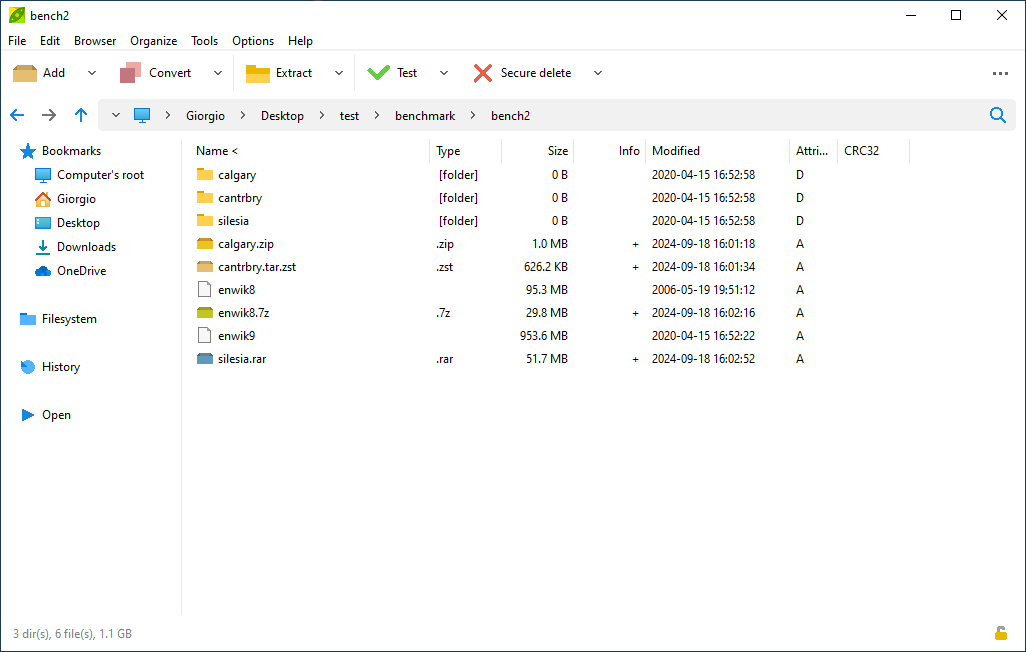
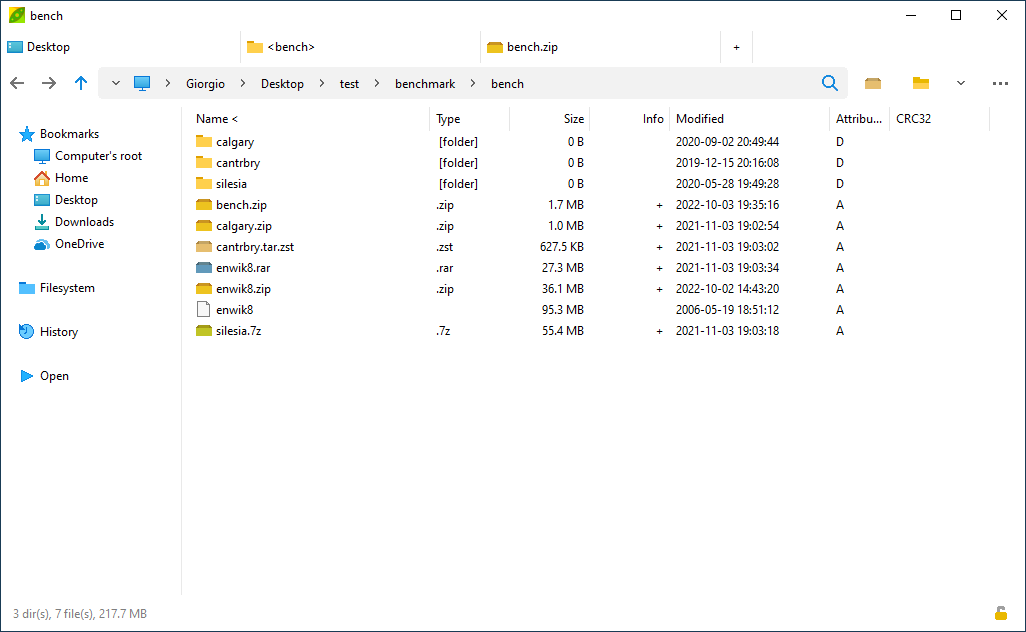
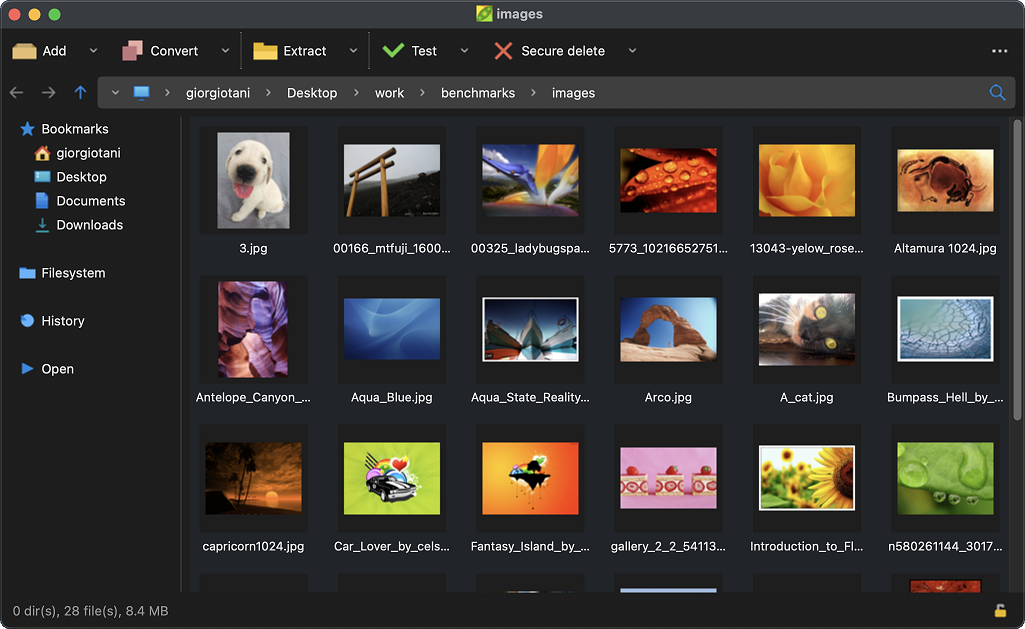
The Pea Zip tool doubles as a full-featured file manager with tabbed browsing, bookmarks, a tree-view sidebar, and file search. You can browse archives just like regular folders, preview images and text files, calculate checksums, find duplicate files, and securely delete sensitive data. It supports both light and dark themes, adapts to your system settings, and runs as a portable app if you prefer not to install anything.
Who Uses It
Pea Zip is popular among power users and IT professionals who need format flexibility beyond what 7-Zip or WinRAR offer. System administrators use it across mixed-OS environments because the interface stays consistent whether you are on a Windows workstation or a Linux server. Home users pick it up because it handles virtually any archive they encounter — without nag screens, trial limits, or bundled junk. The current release, version 10.9.0, continues a nearly two-decade track record of active development since 2006.
Ready to get started? Download Pea Zip for your platform and start managing archives in minutes.
What Makes Pea Zip Different
More than just a ZIP tool. Pea Zip packs format support, encryption, and file management into one lightweight package that runs everywhere.
200+ Archive Formats
Read and extract over 200 archive types out of the box, from common ZIP, 7Z, and RAR files to niche formats like PAQ, ZPAQ, and PEA. Create archives in 14+ formats including Brotli and Zstandard.
Multi-Algorithm Encryption
Protect files with AES-256, Twofish, or Serpent encryption. Most archivers only offer AES. Pea Zip gives you three algorithms to match your security requirements.
Two-Factor Authentication
Add a keyfile alongside your password for two-factor protection on encrypted archives. No other free archiver offers this level of access control.
True Cross-Platform
Same full-featured GUI on Windows, macOS, Linux, and BSD. Native Apple Silicon support included. Your workflow stays consistent regardless of the operating system.
Built-in File Manager
Browse files with tabs, bookmarks, search, and thumbnail previews. The tree sidebar, address bar, and flat view mode make navigating archives feel like using a regular file explorer.
Portable Mode
Run Pea Zip directly from a USB drive or network share with zero installation. All your settings travel with you. Available as portable packages on every supported platform.
CLI Script Export
Set up compression tasks in the GUI, then export them as command-line scripts. Useful for automating backups, batch processing, or integrating into larger workflows.
Secure File Deletion
Permanently erase sensitive files so they cannot be recovered by data recovery tools. Integrated directly into the file manager for quick access.
Checksum and Hash Verification
Verify file integrity using MD5, SHA-1, SHA-256, and other hash algorithms. Confirm that downloaded files match the publisher’s posted checksums before you extract them.
Encrypted Password Manager
Store and manage archive passwords in an encrypted vault built into Pea Zip. Eliminates the need to remember dozens of passwords for protected archives.
All features included free, with no nag screens or trial limits. Download Pea Zip and try them out.
System Requirements
Pea Zip is built to run on modest hardware. Here is what you need for each supported platform.
| Component | Minimum | Recommended |
|---|---|---|
| Windows | Windows XP or later (32-bit or 64-bit) | Windows 10 or 11 (64-bit) |
| macOS | macOS with Intel processor | macOS 12+ with Apple Silicon (M-series) |
| Linux | Any x86 or x86_64 distribution | Modern distro with GTK3 or Qt6 support |
| Processor | Any x86 or x86_64 CPU | Multi-core processor for faster compression |
| RAM | 512 MB | 2 GB or more for large archive operations |
| Disk Space | 30 MB (installed size) | 100 MB+ including temp space for extraction |
| Display | 1024 x 768 resolution | 1280 x 720 or higher |
Ready to get started? Download Pea Zip for your platform.
Download Pea Zip
Grab the latest version of Pea Zip for your operating system. Available as both an installer and a portable package you can run from a USB stick.
Run Pea Zip directly from a USB drive or network share — no installation required. Settings stay with the app, not on the host machine.
All downloads come directly from the official Pea Zip GitHub repository.
Screenshots
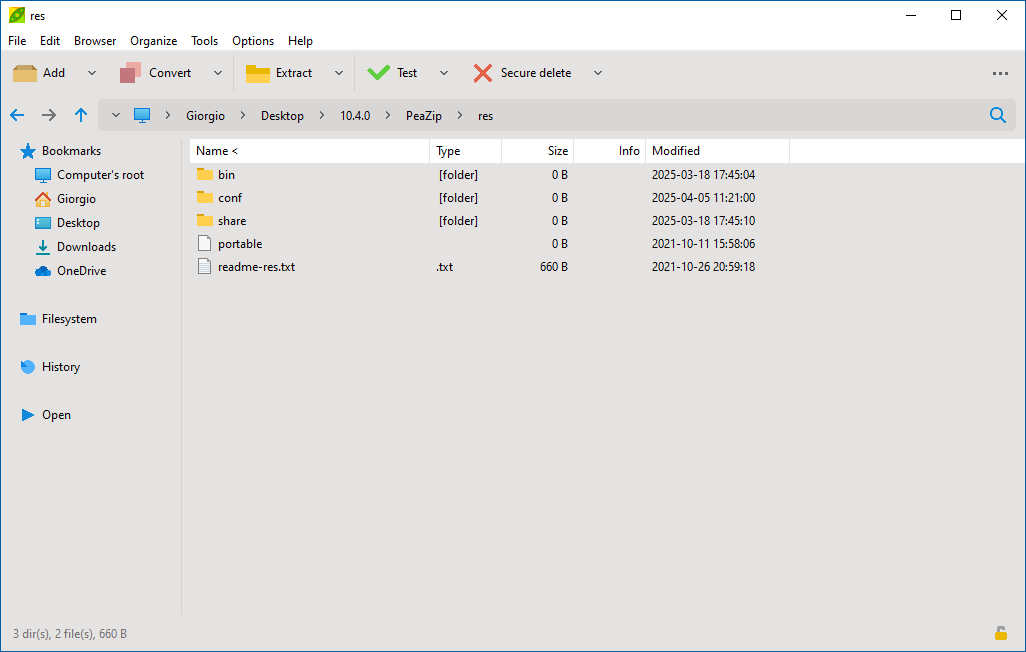
See Pea Zip in action across Windows, macOS, and Linux with both light and dark themes.
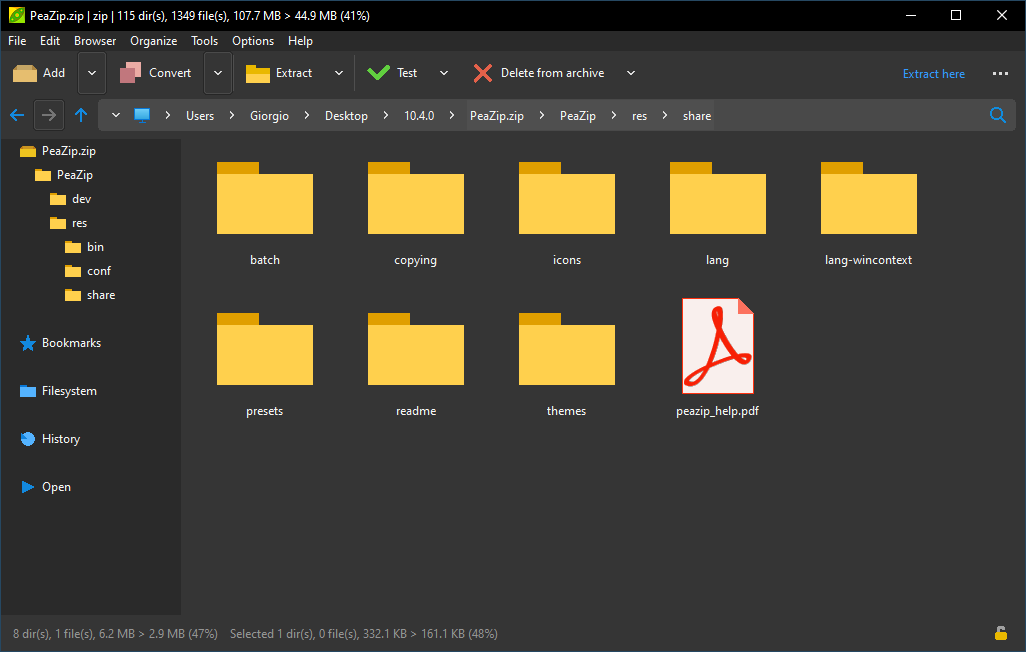
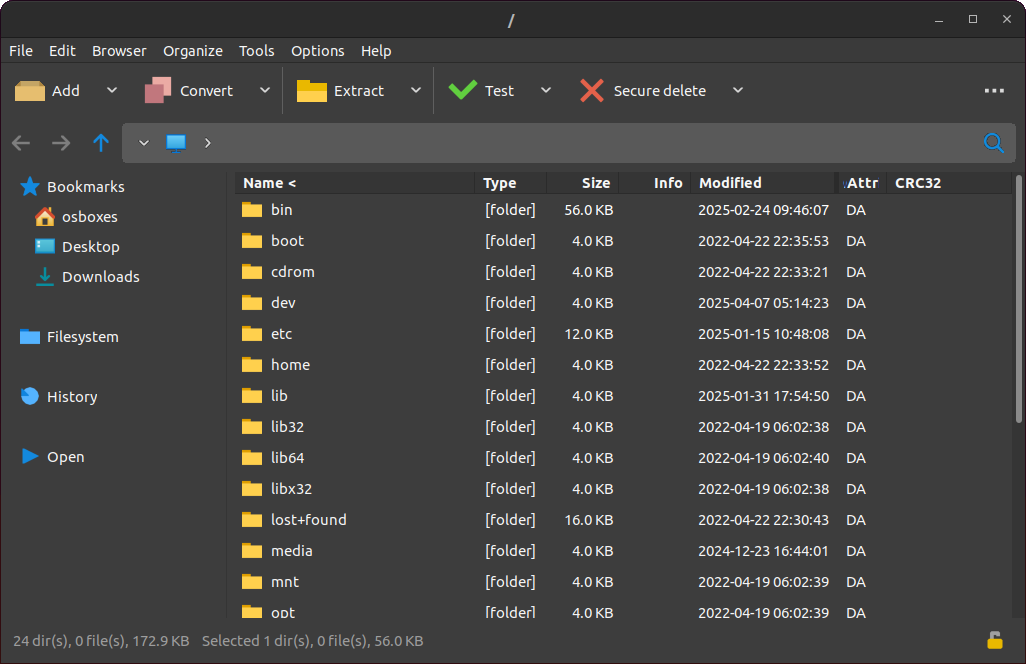
Ready to try it yourself? Download Pea Zip free for Windows, macOS, and Linux.
Getting Started with Pea Zip
From download to your first compressed archive in under five minutes. Here is everything you need to get Pea Zip running on your machine.
Downloading Pea Zip
Head to our download section above and grab the installer that matches your operating system. The Windows 64-bit installer is the most common choice at roughly 10.8 MB — on a typical broadband connection, the download finishes in a few seconds.
Pea Zip offers two main package types on Windows: the standard installer (.exe) and a portable version. The installer registers file associations, adds context-menu entries, and drops a Start Menu shortcut. The portable build runs straight from a folder or USB drive with no installation at all — handy if you work across multiple computers or want to keep a clean system.
If you are on Windows 10 or 11 with a 64-bit processor (which covers the vast majority of PCs sold since 2015), pick the 64-bit installer. Still running an older 32-bit machine? The 32-bit build is about 8.1 MB and works all the way back to Windows XP. macOS users should download the DMG for their chip: Intel or Apple Silicon (M1/M2/M3/M4). Linux users can choose between DEB, RPM, Flatpak, or a portable tarball depending on their distribution.
Installation Walkthrough
Windows: Double-click the downloaded .exe file. If Windows SmartScreen pops up with “Windows protected your PC,” click More info, then Run anyway — this happens because PeaZip is free open-source software and does not pay for a commercial code-signing certificate. The installer is clean and verified by SourceForge and GitHub.
The setup wizard walks you through these screens:
- Welcome screen — Click Next to continue.
- License Agreement — PeaZip uses the LGPLv3 license. Accept it and click Next.
- Release notes — Quick summary of what changed in this version. Click Next.
- Installation mode — Pick Standard Installation for sensible defaults, or choose Custom Installation / System Integration if you want to hand-pick which archive formats get associated with Pea Zip.
- File associations (custom mode) — A checklist of formats: 7Z, ZIP, RAR, TAR, GZ, BZ2, ISO, and many more. Use the Select All button to associate everything, or check only the formats you need.
- Context menu — Tick the entries you want in your right-click menu: “Open in PeaZip,” “Add to archive,” “Extract here,” “Extract to [folder name],” “Test archive,” and “Convert.” On Windows 7 and later a cascaded submenu keeps things tidy.
- Install — Click the button. The process takes about 5 seconds.
- Finish — Optionally launch Pea Zip immediately.
macOS: Open the downloaded .dmg, drag PeaZip into Applications, then open Terminal and run:
This removes the macOS quarantine flag so the app launches without a Gatekeeper block.
Linux: Install with your package manager. On Debian/Ubuntu: sudo dpkg -i peazip_10.9.0.LINUX.GTK2-1_amd64.deb. On Fedora/RHEL: sudo rpm -i peazip-10.9.0.LINUX.GTK2-1.x86_64.rpm. Or grab it from Flathub: flatpak install flathub io.github.peazip.PeaZip.
peazip-10.9.0.WIN64.exe /VERYSILENT /NORESTART. Add /LOG="C:install.log" for a detailed log file.
Initial Setup and Configuration
Pea Zip launches ready to use. No first-run wizard, no account to create. The main window opens straight into a file browser that works much like Windows Explorer, with a toolbar across the top and a folder tree on the left.
A few settings are worth adjusting right away. Open Options > Settings to reach the main configuration dialog:
- General tab — Set the backend mode. “Console” is faster for batch operations. “Graphic” shows a progress window for each task. “Both” gives you both outputs.
- Archive Manager tab — Change the default double-click action. Choose between Open archive (browse contents inside Pea Zip), Extract here (dump files into the same folder), or Extract to new folder (create a subfolder first). Most people prefer “Open archive” so they can browse before extracting.
- Localization tab — Pea Zip supports dozens of languages. Select a .txt language file from the list to switch the entire interface.
- Theme tab — Switch between light and dark mode. Pre-built dark themes include Graphite, Mocha, Plum, and Senape. You can also tweak accent color, background, and contrast individually.
To manage file associations after installation, go to Options > System integration. This reopens the same wizard you saw during setup, letting you add or remove context-menu entries and format associations anytime.
Migrating from 7-Zip or WinRAR? There is no import tool, but it only takes a minute. Associate the archive formats you want with Pea Zip through the System Integration wizard, and your .zip, .7z, and .rar files will open in Pea Zip when you double-click them.
Your First Archive: Compress and Extract
Compressing files: The fastest way is through the right-click context menu. Select one or more files in Windows Explorer, right-click, and choose PeaZip > Add to archive. This opens the archive creation dialog where you pick the output format, compression level, and destination.
Let’s walk through a concrete example. Say you have a folder called “project-files” that you want to compress into a .7z archive:
- Right-click the folder and select PeaZip > Add to archive.
- In the dialog, the output name defaults to
project-files.7z. Change the format dropdown if you prefer ZIP, TAR, or something else. - Set compression level — Normal is the sweet spot between speed and file size. Ultra squeezes out extra bytes but takes longer.
- To password-protect, click the padlock icon (or press F9). Enter a password and optionally attach a keyfile for two-factor authentication.
- Click OK. Pea Zip creates the archive and shows a progress bar with estimated time remaining.
Extracting files: Double-click any archive and Pea Zip opens it like a regular folder. Browse the contents, select what you need, and click the Extract button in the toolbar (or press Ctrl+E). Choose where to extract, and you are done. For the quickest extraction without any dialogs, right-click the archive in Explorer and pick PeaZip > Extract here (smart) — this creates a subfolder automatically so files do not scatter across your directory.
Here are the keyboard shortcuts you will use most often:
| Shortcut | Action |
|---|---|
| Shift+F5 | Add selected files to a new archive |
| Ctrl+E | Extract selected items (with dialog) |
| F12 | Extract all to a chosen path |
| F9 | Set password / attach keyfile |
| F6 | Toggle flat view (see all nested files) |
| F3 | Search inside an archive |
| Ctrl+T | Test archive integrity |
| Ctrl+Delete | Secure-delete selected files |
Tips, Tricks, and Best Practices
Use the Console tab. Every time you create or extract an archive, switch to the Console tab in the operation dialog. It shows the exact command-line equivalent of what Pea Zip is about to run. Copy that command to automate the same task in a batch script or scheduled backup.
Set up favorite extraction paths. In Settings, you can configure up to 8 preset output folders. Once set, press Ctrl+1 through Ctrl+8 to extract directly to any of them with a single keystroke — no dialog, no folder picker.
Use flat view for deep archives. Press F6 to switch from the normal tree view to flat view. This shows every file in the archive in one list regardless of folder depth, making it easy to find a specific file buried inside nested directories.
Common beginner mistake: choosing Ultra compression for everything. Ultra is only worth it for large single-file archives where you are trying to save significant space. For everyday use, Normal or Fast compression finishes quicker and the size difference is typically under 5%.
Check file integrity. Select any file and press ? (question mark) to calculate checksums (MD5, SHA-256, CRC32). Use this to verify downloads match the hash published by the software author.
Stay updated: Pea Zip does not auto-update. Check for new versions through Help > Check for updates, or keep an eye on the GitHub releases page. The project ships updates regularly — v10.9.0 landed on February 7, 2026.
Where to get help: The official wiki at github.com/peazip/PeaZip/wiki covers every feature in detail. For community discussion, check r/PeaZip on Reddit. Press Alt+F1 inside the app to open the built-in help PDF.
Ready to get started? Download Pea Zip and have it running in under a minute.
Frequently Asked Questions
Answers to the most common questions about downloading, installing, and using Pea Zip on Windows, macOS, and Linux.
Is Pea Zip safe to download?
Yes, Pea Zip is safe to download. The software is open source under the LGPL v3 license, meaning its entire source code is publicly available on GitHub for anyone to audit. Official builds are distributed through GitHub Releases and SourceForge, both of which run automated malware scans on uploaded files.
The Windows 64-bit installer (approximately 10.8 MB for version 10.9.0) consistently returns zero detections on VirusTotal across 70+ antivirus engines. Pea Zip contains no adware, no bundled toolbars, and no telemetry. The developer, Giorgio Tani, has maintained the project since 2006 with a clean track record spanning nearly two decades.
One thing to watch out for: the domain peazip.com is NOT affiliated with the official project. The developer has publicly warned about this on the official site. Always download from peazip.github.io or the GitHub releases page at github.com/peazip/PeaZip.
Pro tip: After downloading, verify the SHA-256 checksum listed on the GitHub release page against your downloaded file. On Windows, run certutil -hashfile peazip-10.9.0.WIN64.exe SHA256 in Command Prompt to generate the hash.
For more about Pea Zip’s security features including AES-256 encryption and two-factor authentication, see our Features section.
Why does my antivirus flag Pea Zip as a virus?
This is a false positive. Some antivirus programs flag Pea Zip because of its built-in encryption routines, secure file deletion features, and the compression algorithms it uses. These are the same heuristic triggers that cause legitimate security tools to get flagged.
In older versions (before 7.2.1), Pea Zip used UPX executable packing, which several antivirus engines treat as suspicious by default. The developer removed UPX from Windows builds starting with version 7.2.1 specifically to reduce false positives. If you are running a version older than 7.2.1, upgrading to 10.9.0 should resolve most detection issues.
- Check the file on VirusTotal — official Pea Zip builds show 0/70+ detections
- Verify you downloaded from the official source (peazip.github.io or GitHub)
- Add an exception in your antivirus for the Pea Zip installation folder
- Report the false positive to your antivirus vendor — this helps future users
Pro tip: If your organization’s security policy blocks the installer, try the portable version instead. It requires no installation and can often bypass installer-specific heuristic rules.
Download the latest verified build from our Download section.
Where is the official safe download for Pea Zip?
The only official download sources for Pea Zip are peazip.github.io and the GitHub repository at github.com/peazip/PeaZip. The SourceForge mirror at sourceforge.net/projects/peazip is also legitimate. On Linux, the Flathub listing (io.github.peazip.PeaZip) is verified.
The developer has explicitly warned that peazip.com and certain Microsoft Store listings are NOT affiliated with the project. Third-party download aggregator sites sometimes bundle unwanted software with their installers. Stick to the official sources listed above to avoid any risk.
- GitHub Releases: github.com/peazip/PeaZip/releases — includes checksums and changelogs
- Official Site: peazip.github.io — links to all platform downloads
- SourceForge: sourceforge.net/projects/peazip — mirrored official builds
- Flathub (Linux): flathub.org/apps/io.github.peazip.PeaZip
Pro tip: Bookmark the GitHub releases page directly. It shows every version ever released, with file hashes and full changelogs, so you can always find what you need.
You can also grab the latest build from our Download section below.
Does Pea Zip work on Windows 11?
Yes. Pea Zip 10.9.0 runs natively on Windows 11 with full support for both 32-bit and 64-bit systems. It also respects Windows 11’s dark mode setting automatically (added in version 10.4.0), switching its interface theme to match your system preferences.
One area where Windows 11 behaves differently: file associations. The new Windows 11 Default Apps settings panel sometimes does not show Pea Zip in the suggested apps list. If this happens, open any archive file, right-click it, select “Open with,” then “Choose another app,” and browse to the Pea Zip executable. You can also set associations from within Pea Zip itself through Options > System Integration > File Associations.
For the Windows 11 context menu (the compact right-click menu), Pea Zip includes registry scripts in its res/share/batch folder that add full context menu integration. Without these scripts, you will only see Pea Zip in the “Show more options” expanded menu.
Pro tip: Run the pzregw11ctx.reg script from the batch folder after installation to get Pea Zip options directly in the Windows 11 mini context menu without needing “Show more options.”
Check the full list of supported platforms in our System Requirements.
Can Pea Zip open RAR files?
Yes, Pea Zip can extract RAR archives right out of the box, including the newer RAR5 format. No additional plugins or third-party software needed. It handles multi-part RAR archives (like .r00, .r01 split files) and password-protected RAR files without issues.
There is one limitation: Pea Zip cannot create RAR archives. The RAR format is proprietary, and only WinRAR holds the license to compress files into RAR format. If you need to create archives, Pea Zip offers 7Z and ZIP as alternatives. 7Z typically provides better compression ratios than RAR anyway. You can also use Pea Zip’s format conversion feature to batch-convert RAR files into 7Z or ZIP.
Pea Zip supports over 200 archive formats total, including 7Z, ZIP, TAR, GZ, BZ2, XZ, ISO, CAB, DEB, RPM, Brotli, Zstandard, and many more. If someone sends you an archive, Pea Zip can almost certainly open it.
Pro tip: If Pea Zip does not automatically detect a multi-volume RAR set, open the first file (usually .rar or .part1.rar) directly. Pea Zip will locate and process the remaining volumes automatically.
See all supported formats in our Features overview.
Does Pea Zip run on macOS and Linux?
Yes. Pea Zip provides native builds for macOS (both Intel and Apple Silicon M1/M2/M3/M4 chips) and Linux (x86, x86_64, and experimental ARM/aarch64 support). The macOS DMG installer is about 25.5 MB for Intel and 24.8 MB for Apple Silicon.
On macOS, after installation you may need to clear the quarantine flag since Pea Zip is not notarized with Apple. Open Terminal and run: xattr -dr com.apple.quarantine /Applications/peazip.app. For context menu integration on macOS, the project provides optional Automator scripts.
On Linux, you have several installation options:
- Native packages: .deb for Ubuntu/Debian, .rpm for Fedora/RHEL/openSUSE — best for system integration
- Flatpak:
flatpak install flathub io.github.peazip.PeaZip— sandboxed, auto-updates - Portable TAR.GZ: Extract anywhere, no root needed, delete the folder to remove
Linux builds are available with GTK2, GTK3, or Qt6 interfaces, depending on which desktop toolkit you prefer. GTK2 offers the widest compatibility with older distributions.
Pro tip: On Linux, the Flatpak version auto-updates through your software center. For .deb/.rpm installs, you will need to manually download and install new versions when updates are released.
Grab the right version for your OS from our Download section.
Is Pea Zip completely free to use?
Yes. Pea Zip is 100% free for both personal and commercial use. There is no premium tier, no feature lockout, no trial expiration, and no nag screens asking you to buy a license. Every feature is available from day one, forever.
This sets Pea Zip apart from commercial alternatives. WinRAR costs $29.99 and shows a pop-up every time it launches after the trial period. WinZip charges $34.95 per year as a subscription. 7-Zip is also free, but Pea Zip offers more formats (200+ vs roughly 30) and a more polished interface.
The project is licensed under LGPL v3 (GNU Lesser General Public License version 3). This means the source code must remain open and available, but you can use the software freely in any environment — home, business, government, or education — without restrictions. Development has been sustained through voluntary donations since the project launched in 2006.
Pro tip: If Pea Zip saves you time or money, consider donating through the official site. It helps fund ongoing development and keeps the software free for everyone.
See what you get for free in our Features section.
Can I use Pea Zip at work or in a business?
Yes. The LGPL v3 license places no restrictions on commercial or enterprise use. You can install Pea Zip on every machine in your organization, deploy it through group policy or SCCM, and use it daily without any licensing fees or per-seat costs.
For IT administrators, Pea Zip offers several enterprise-friendly features. The portable version can be deployed to a network share so users run it without local installation. The software supports exporting GUI-defined tasks as command-line scripts, which is useful for automating backup and archiving workflows. It also supports AES-256 encryption with two-factor authentication (password plus keyfile), which can satisfy compliance requirements for handling sensitive data.
Pea Zip does not phone home, does not require activation, and does not need internet access to function. There is no license server to maintain and no annual renewal to track. It works completely offline.
Pro tip: For enterprise deployment, use the MSI installer (available from the GitHub releases page) or the portable ZIP archive. Both can be scripted for silent installation across your network.
Learn more about Pea Zip’s encryption and automation capabilities in our Features section.
How do I install Pea Zip on Windows step by step?
Installing Pea Zip on Windows takes under two minutes. The installer is about 10.8 MB for the 64-bit version and requires no special prerequisites.
- Download the Windows installer from our download section or from peazip.github.io
- Run the downloaded .exe file. If Windows SmartScreen warns you, click “More info” then “Run anyway” — the file is safe
- Choose your installation directory (default is
C:\Program Files\PeaZip) - Select which file associations you want Pea Zip to handle (7Z, ZIP, RAR, TAR, etc.)
- Choose whether to add context menu integration (recommended for right-click support)
- Click Install and wait a few seconds for it to finish
After installation, Pea Zip appears in your Start menu and (if you selected the option) in your right-click context menu. Double-clicking any associated archive file will open it in Pea Zip automatically.
If you are on Windows 11 and want Pea Zip in the compact right-click menu (instead of the “Show more options” submenu), run the registry script found at C:\Program Files\PeaZip\res\share\batch\pzregw11ctx.reg after installation.
Pro tip: For a silent install (useful for deploying across multiple machines), run the installer with the /VERYSILENT flag from the command line.
For a full walkthrough, check our Getting Started guide.
Pea Zip portable vs installer – which should I choose?
Both versions have identical features and performance. The difference is how they interact with your operating system.
The installer version registers file associations so archive files open in Pea Zip when you double-click them. It adds right-click context menu entries, creates Start menu shortcuts, and integrates with Windows SendTo. It requires administrator privileges to install and writes to the Windows registry. Choose this if Pea Zip will be your daily file archiver on a machine you control.
The portable version makes zero changes to your system. No registry entries, no file associations, no installed services. You extract the ZIP to any folder (including a USB drive) and run peazip.exe directly. Delete the folder to remove it completely. Choose portable if you work on shared computers, want to carry Pea Zip on a USB stick, or if your workplace restricts software installations.
- Installer: ~10.8 MB download, integrates with OS, needs admin rights
- Portable: ~15 MB download (ZIP archive), no system changes, runs from any folder
Pro tip: You can run both versions on the same machine without conflicts. Install the regular version for everyday use, and keep a portable copy on a USB drive for use on other computers.
Download either version from our Download section.
How do I set Pea Zip as the default archive handler in Windows?
Open Pea Zip, go to Options > System Integration > File Associations. Tick the checkboxes for every file extension you want Pea Zip to handle (7Z, ZIP, RAR, TAR, GZ, etc.), then click Apply.
On Windows 10, this usually works immediately. On Windows 11, there is a known quirk: the Settings > Default Apps panel may not list Pea Zip for certain file types. If Pea Zip does not appear as an option, use this workaround:
- Right-click any .zip (or .7z, .rar, etc.) file in File Explorer
- Select “Open with” > “Choose another app”
- Click “More apps” or “Look for another app on this PC”
- Browse to
C:\Program Files\PeaZip\peazip.exe - Check “Always use this app” and click OK
Repeat for each file type you want Pea Zip to handle. You need to do this only once per extension.
Pro tip: To associate all supported formats at once, run Pea Zip as administrator and use Options > System Integration > File Associations > Select All. This sets Pea Zip as the handler for every format it supports in a single click.
See full system requirements and compatibility details at System Requirements.
How to fix Pea Zip not opening or crashing on startup?
If Pea Zip will not launch or crashes immediately after opening, the most common causes are a corrupted installation, antivirus interference, or a mismatch between the 32-bit and 64-bit versions.
Start with these steps:
- Check your architecture: If you are running 64-bit Windows (most modern PCs), make sure you downloaded the 64-bit version. The 32-bit build may fail on some 64-bit systems due to missing WoW64 components
- Temporarily disable your antivirus: Some security software quarantines Pea Zip files during or after installation. Check your antivirus quarantine/history for any Pea Zip-related detections
- Reinstall cleanly: Uninstall Pea Zip completely, restart your PC, then download the latest version (10.9.0) from peazip.github.io and reinstall
- Try the portable version: If the installer version keeps crashing, download the portable ZIP, extract it, and run peazip.exe directly. If portable works but the installer does not, your installed copy was likely corrupted
Drag-and-drop freezing was a known bug in versions before 10.1. If you experience hangs when dragging files into Pea Zip, make sure you are running version 10.1 or later. You can also switch to Pea Zip’s custom drag-and-drop mode through Options > Settings > General.
Pro tip: If Pea Zip crashes only when opening specific archive files, the archive itself may be corrupt. Try running the Test function (Ctrl+T) on the file first to verify its integrity.
For installation help, see our Getting Started guide.
Why is Pea Zip extraction slow and how do I speed it up?
Extraction speed depends on the archive format, the compression level used when the archive was created, and your hardware. Pea Zip itself adds minimal overhead since it calls the same backend engines (7z, Brotli, Zstandard) that other archivers use.
If extraction feels unusually slow, check these common causes:
- High compression formats: ZPAQ, PAQ, and maximum-compression 7Z archives are CPU-intensive by design. A 500 MB ZPAQ archive might take 10-20 minutes on a mid-range processor. This is normal for these formats
- Large archives with many small files: Extracting 100,000 small files is slower than extracting a few large files of the same total size, due to filesystem overhead. Extract to an SSD rather than an HDD for a significant speed boost
- Antivirus real-time scanning: Your antivirus scans each extracted file individually. For large extractions, temporarily disabling real-time scanning can cut extraction time by 30-50%
- Encrypted archives: Decryption adds a small performance cost, especially with Twofish or Serpent ciphers. AES-256 is fastest due to hardware acceleration on modern CPUs
Pro tip: When creating archives yourself, use Zstandard (ZST) format for the best balance of speed and compression ratio. Zstandard decompresses 5-10x faster than LZMA/7Z at similar compression ratios, and Pea Zip supports it natively since version 10.0.
Check if your hardware meets the recommended specs at System Requirements.
Pea Zip stopped working after a Windows update – how to fix?
Windows updates occasionally reset file associations and can interfere with third-party software. If Pea Zip stops working after a Windows update, here is what to do:
- Re-register file associations: Open Pea Zip, go to Options > System Integration > File Associations, and re-apply your selected file types. Windows updates sometimes silently reset default app associations
- Repair the installation: Run the Pea Zip installer again over your existing installation. Choose “Repair” when prompted. This restores any registry entries or shortcuts that the Windows update may have removed
- Update to the latest version: If you were running an older version, the issue might already be fixed in 10.9.0. Download the latest build and install it over your current copy
- Check Windows Defender exclusions: Major Windows updates sometimes reset Defender’s exclusion list. If you had added Pea Zip to your exclusions, you may need to add it again
A specific issue reported with Windows 11 version 23H2: the context menu entries for Pea Zip disappeared after the update. Running the pzregw11ctx.reg script from Pea Zip’s batch folder restored them.
Pro tip: Keep the Pea Zip portable version on hand as a backup. It does not depend on registry entries or file associations, so it keeps working regardless of Windows updates.
Download the latest version from our Download section.
How do I update Pea Zip to the latest version?
Pea Zip does not include a built-in auto-updater. To update, download the latest installer from peazip.github.io or the GitHub releases page and install it over your existing version. Your settings and file associations carry over automatically.
The current latest version is 10.9.0, released on February 7, 2026. The project receives frequent updates — eight releases shipped in 2025 alone, roughly one every six to eight weeks.
For automated update checking on Windows, you have a few options:
- winget: Run
winget upgrade PeaZip.PeaZipfrom an elevated Command Prompt - PatchMyPC: This free tool monitors installed software and alerts you when updates are available
- Chocolatey: Run
choco upgrade peazipif you use Chocolatey as your package manager
For the portable version, download the new portable ZIP, extract it to a fresh folder, and copy over your peazip.conf configuration file from the old folder to preserve your settings. Then delete the old folder.
Pro tip: Subscribe to GitHub releases notifications for the PeaZip repository. Click Watch > Custom > Releases on the GitHub page to get an email whenever a new version drops.
See what changed in recent versions at our Features section.
What is new in Pea Zip 10.9.0?
Pea Zip 10.9.0, released February 7, 2026, brings interface improvements and better format handling. It supports 242 archive file extensions and is compiled with Lazarus 4.2.
The main changes in this release:
- Redesigned GUI for Pea/Unpea: The PEA format tools got a renewed interface that is cleaner and easier to use
- Alternative context menus and keyboard shortcuts: Customizable middle mouse button click actions and new shortcut options
- Improved image and text viewers: The built-in viewers now support BOM detection and word wrap for text files
- Better RAR handling: Improved support for multi-volume RAR archives and automatic RAR binary detection on Linux and macOS
- Performance improvements: Faster browsing of archives that contain large numbers of items, plus improved internal drag-and-drop reactivity
- Backend update: Pea engine updated to version 1.29
Previous notable releases: 10.8.0 added format previews for ARC/Brotli/Zstandard archives. Version 10.7.0 introduced image thumbnails across all platforms and ClamAV integration on Linux. Version 10.6.0 brought dynamic virtual mode for browsing large archives up to 6x faster.
Pro tip: Read the full changelog on the GitHub releases page before updating. Each release lists every change, so you know exactly what you are getting.
Download the latest version from our Download section.
Pea Zip vs 7-Zip – which one should I use?
Both are free, open-source file archivers, and both are solid choices. They even share the same underlying compression libraries for 7Z and ZIP formats. The differences come down to interface, extra features, and platform support.
Choose Pea Zip if you want: A modern cross-platform GUI with themes and dark mode. Support for 200+ archive formats (vs 7-Zip’s roughly 30). Two-factor authentication for encrypted archives (password + keyfile). Built-in tools like duplicate file finder, secure deletion, and batch format conversion. Native builds for Windows, macOS, and Linux with the same interface everywhere.
Choose 7-Zip if you want: The smallest possible footprint (1.6 MB installer vs Pea Zip’s 10.8 MB). Marginally better compression ratios at maximum settings (roughly 2-10% smaller files with 7Z/GZIP). A mature, powerful command-line interface. The most minimalist, no-frills experience.
Performance is close. Pea Zip actually leads in ZIP extraction speed in some benchmarks (3.9 seconds vs 7-Zip’s 4.4 seconds in community tests). Since Pea Zip wraps 7-Zip’s libraries internally, raw compression at identical settings is nearly identical. One feature Reddit users highlight: Pea Zip handles compressed tar files (like .tar.gz) in a single step, while 7-Zip requires two separate extractions.
Pro tip: You can install both side by side. Many power users keep 7-Zip for quick command-line operations and Pea Zip for GUI-based browsing and format conversion.
See how Pea Zip’s features stack up in our Features section.
How do I encrypt files with Pea Zip using two-factor authentication?
Pea Zip is one of the few free archivers that supports two-factor authentication for encrypted archives. It combines a password with a keyfile (any file on your disk) so that both are required to decrypt the archive.
To create an encrypted archive with 2FA:
- Select the files you want to compress in Pea Zip’s file browser
- Click “Add” in the toolbar to open the archive creation dialog
- Click the padlock icon (or press F9) to open the encryption panel
- Enter a strong password
- Click the key icon next to the password field and browse to your keyfile
- Check “Encrypt also file names” if you want to hide the archive’s table of contents
- Select your encryption algorithm: AES-256 (fastest, hardware-accelerated), Twofish-256, or Serpent-256
- Click OK and create the archive
Under the hood, Pea Zip computes the Base64-encoded SHA-256 hash of your keyfile and prepends it to your password. This means even if someone discovers your password, they cannot open the archive without also having the exact keyfile. The PEA format goes further by using EAX authenticated encryption mode, which verifies data integrity alongside privacy.
Pro tip: Use Pea Zip’s built-in random keyfile generator (Tools > Create Random Password/Keyfile, or Ctrl+F9) to create a cryptographically strong keyfile. Store it on a separate USB drive from the archive for maximum security.
Read more about Pea Zip’s security features at Features.
Can I automate archiving tasks with Pea Zip?
Yes. Pea Zip bridges the gap between GUI convenience and command-line automation. You can set up any operation in the graphical interface and then export it as a command-line script to run later without the GUI.
Here is how to create automated tasks:
- Set up your archiving or extraction operation in the GUI as you normally would
- Before clicking OK, look at the Console tab at the bottom of the dialog — it shows the exact command that will be executed
- Copy that command into a .bat (Windows) or .sh (Linux/macOS) script file
- Schedule the script using Windows Task Scheduler, cron (Linux), or launchd (macOS)
This approach works well for recurring backup jobs. For example, you could create a nightly script that compresses your project folder into an AES-256-encrypted 7Z archive with a timestamped filename. Pea Zip wraps backend tools like 7z.exe, so the generated scripts work even on machines that only have the backend installed.
Pea Zip also supports batch operations directly in the GUI. Select multiple archives and extract them all at once, or convert a folder full of ZIP files to 7Z format in a single batch operation.
Pro tip: For scheduled backups, use the Zstandard format instead of 7Z. Zstandard compresses nearly as well but runs 5-10x faster, which matters when your backup script runs during off-hours and needs to finish quickly.
Learn more about Pea Zip’s capabilities at Features.